Saturday, July 16, 2016

The private key does not support the exchange KeySpec.

When using Active Directory Federation Services (ADFS) for claims-based authentication with Dynamics CRM, one of the requirements is a SSL certificate. If a new certificate has to be procured, it is imperative to make sure the certificate request (CSR) is being generated with the correct KeySpec, if required.

There are two options for KeySpec:
  • “1” or “XCN_AT_KEYEXCHANGE” 
  • “2” or “XCN_AT_SIGNATURE”
With ADFS, the certificate needs to support key exchange so the required KeySpec is "1" or "XCN_AT_KEYEXCHANGE". If the other option is chosen, you may end up with failures when trying to log in to CRM and will see errors in the event viewer on the ADFS server similar to below.

Exception type: NotSupportedException 
    Exception message: The private key does not support the exchange KeySpec.
   at System.IdentityModel.Tokens.X509AsymmetricSecurityKey.DecryptKey(String algorithm, Byte[] keyData)
   at System.IdentityModel.Selectors.SecurityTokenResolver.SimpleTokenResolver.TryResolveSecurityKeyCore(SecurityKeyIdentifierClause keyIdentifierClause, SecurityKey& key)


While the certificate will still appear valid using "XCN_AT_SIGNATURE" and will secure the webpages, authentication will not succeed with ADFS so the certificate will need to be regenerated. 

Thursday, May 26, 2016

CRM Reporting Issue - The system cannot contact a domain controller to service the authentication request

Had a case come into my queue indicating a client’s reports in their production CRM were not working so I logged in and began taking a look. At first glance, I was seeing the generic “Reporting Error – The report cannot be displayed. (rsProcessingAborted)” that we see for 90% of reporting issues so I proceeded to the SSRS logs where I was greeted with the following error:

System.Runtime.InteropServices.COMException: The system cannot contact a domain controller to service the authentication request. Please try again later. (Exception from HRESULT: 0x80090350) ---> Microsoft.Crm.Reporting.DataExtensionShim.Common.ReportExecutionException: The system cannot contact a domain controller to service the authentication request. Please try again later. (Exception from HRESULT: 0x80090350)

Interesting to say the least and something I had never seen before. My inclination was that a domain controller was down or somehow the connection to AD was severed (but then again, how was I able to log on the server). I ran a set command to check the logon sever and was able to ping it fine, along with all of the other DCs. Next stop was at the DNS/Gateway settings on the NIC – compared everything to another SQL/SSRS server that was working fine. Again, nothing seemed out of place.
Off to the handy dandy event viewer! Immediately I noticed a flood of errors indicating that the automatic backups and log shipping were failing. Amidst those errors I found a familiar message:


Whatever was causing the reporting issue was also causing the backups to fail. I made my way through the events until I reached the beginning of the flood and there it was, in all its glory:

BackupDiskFile::CreateMedia: Backup device '\\goxsaXXXX\D$\MSSQL11.XXXX\MSSQL\Backup\Log_Shipping\XXXX_20160524043001.trn' failed to create. Operating system error 1331(This user can't sign in because this account is currently disabled.).


Easy enough – the SQLAdmin account running SSRS (and the other SQL services) cannot authenticate because it’s disabled.

 
Had the customer check AD and sure enough, the account was disabled. Once enabled, reports began working again. 

In all, this was a very strange error message for the actual issue. It could have really led us on a wild goose chase into the networking side of things. Probably saved 2-3 hours by reading through the error logs and being thorough in investigation before going back to the customer with the wrong answer. Moral of the story: do your homework.


Saturday, May 14, 2016

Use SSL for Outgoing Connection / Incoming Connection Radio Buttons Greyed Out for CRM Server Side Sync POP3-SMTP Profile

If you need to create a Server Side Sync profile for your POP3 and/or SMTP servers without using SSL for your on-premise CRM 2013, 2015, or 2016 environments you may notice that you are unable to change the option to not use SSL. The radio buttons are simply greyed out and stuck set to “Yes”. This can be problematic if you want to run over basic HTTP.


Luckily, these buttons can be enabled via the following PowerShell commands run on the CRM server:

Add-PSSnapin Microsoft.Crm.Powershell
$setting=Get-CrmSetting ServerSideSyncEmailSettings
$setting.AllowNonSSLEmail=$True
Set-CrmSetting $setting
Get-CrmSetting -SettingType ServerSideSyncEmailsettings
Exit

After the commands are complete, refresh your browser and the buttons should now be active.

Thursday, May 5, 2016

A Server Certificate Could Not Be Validated for URL - SQL Server Reporting Services 2012


If you ever get the following error during the system checks of the CRM installer, check to see if you can even access the Report Manager URL from the SSRS server:

A Server Certificate Could Not Be Validated for URL: http://reportservername/ReportServer 


When checking the Report Manager URL (http://reportservername/Reports) using HTTP - not HTTPS - you may see the following error:

The underlying connection was closed: Could not establish trust relationship for the SSL/TLS secure channel.


You will probably also get a certificate error accessing the Report Service URL (http://reportservername/ReportServer) which will end up resulting in a 404 error screen if you proceed. So why is SSRS looking for SSL/TLS when using HTTP?

The answer is rather simple – it’s configured to do so. Here is how to change that:

1. Go to the Report Server directory. Typically it is {Drive}:\MSRS11\Reporting Services\ReportServer

2. Open the rsreportserver.xml file in notepad or other editing software.


3. In this configuration file, look for or run a find for SecureConnectionLevel. It should be about 12 lines from the top. You will likely see this key set to a value of 2.


4. Change the value to 0 so that the line reads:
<Add Key=”SecureConnectionLevel” Value=”0” />


5. Save and close the file. Restart the SQL Reporting Services service and try accessing the Report Manager URL once more. You should now get the site as expected over HTTP.


6. Go back to your CRM server and re-run the installation wizard.

Of course, the alternative to going this route is to actually provide SSRS with an SSL certificate and access it over HTTPS only but some may not want the added hassle or cost.

Sunday, April 24, 2016

CRM and IIS Machine Keys

When you have multiple CRM web (front-end) servers splitting the load, requests can bounce between servers or they can be set to remain on the same server through the NLB/Firewall settings. The latter option is commonly referred to as “Sticky Sessions” or “Persistence”.

If requests bounce between servers (whether by design or by fault), you may notice issues when accessing certain functionality within CRM. Often it will be accompanied by the following error message in the event viewer:

Event code: 3012 
Event message: An error occurred processing a web or script resource request. The resource identifier failed to decrypt. 

Exception information: 
    Exception type: HttpException 
    Exception message: Unable to validate data.
   at System.Web.Configuration.MachineKeySection.EncryptOrDecryptData(Boolean fEncrypt, Byte[] buf, Byte[] modifier, Int32 start, Int32 length, Boolean useValidationSymAlgo, Boolean useLegacyMode, IVType ivType, Boolean signData)
   at System.Web.UI.Page.DecryptString(String s, Purpose purpose)
   at System.Web.Handlers.ScriptResourceHandler.ProcessRequest(HttpContextBase context, VirtualFileReader fileReader, Action`2 logAction, Boolean validatePath)

Basically what is happening is one server encrypted (validated) some of the traffic with an automatically generated key and another server received it but cannot decrypt it because it has different keys. These keys are known as “machine keys” and are found within IIS. By default, these keys are all set to generate automatically and no two are the same. When you are using multiple web servers, the machine keys need to be set statically and shared amongst them. Here is how to do this, starting on the first web server:

  1. Open IIS, select the Microsoft Dynamics CRM Website, and double-click “Machine Key”

  2. Uncheck the “Automatically generate at runtime” and “Generate a unique key for each application” boxes under both “Validation Key” and “Decryption Key”.

  3. Click “Generate Keys” on the right side of the screen.

  4. This will create new, random keys.

  5. Click apply.

  6. From here, repeat steps 1 and 2 on the remaining web servers. Instead of generating new keys as in step 3, copy and paste the keys generated from earlier into the remaining servers so that all servers have the same set of keys.
  7. Once keys on all servers are set and applied, reset IIS on all the boxes. That should do it.

Friday, April 15, 2016

CRM 2016 Update 0.1 Bug with ADFS for Server 2012 R2


Following a successful upgrade to CRM 2016 and installation of the 0.1 Update, users could no longer authenticate against ADFS using the “internal” URL.

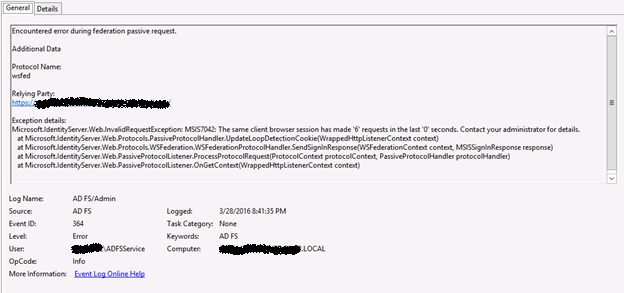
On the ADFS server I was seeing Event ID 364 in the Event Viewer:

Exception details:
Microsoft.IdentityServer.Web.InvalidRequestException: MSIS7042: The same client browser session has made '6' requests in the last '0' seconds. Contact your administrator for details.


In efforts to get this working, I tried completely re-configuring CRM for claims and IFD and even recreated the Relying Party Trusts. All with no luck but apparently, I was not alone on this issue and Microsoft has acknowledged it as a bug with Update 0.1. The following forum thread has more info:

https://social.msdn.microsoft.com/Forums/windowsserver/en-US/9d4040eb-81fa-4144-ae4b-85ca4610aa1d/crm-2016-problem-with-claimsbased-authentication?forum=crm

These are the only real details on this issue currently available:

There were major code changes in Ara UR1 for authentication. The affected code is in Microsoft.Crm.Core.Security.Identity.IdentityExtensions.GetUserPrincipalName(). We are unable to cast from type ClaimsIdentity to a new type CrmIdentity. Therefore, the variable is null, and we cannot retrieve the information.

Please note that only the ‘internal’ URL is affected when IFD is setup. The ‘external’ URL (e.g. https://orgname.domain.com) that uses forms authentication works fine still. I will update this blog post as more information becomes available.

UPDATE: Service Pack 1 for CRM 2016 resolves this issue.

Sunday, April 3, 2016

Host Header Configured on Selected Site Does Not Resolve to an IP Address that is Assigned to the Local System.

I was recently performing an in-place upgrade from CRM 2015 to CRM 2016 when during the system checks I received the following warning:

Host Header "notCRM.domain.com" configured on selected site does not resolve to an IP address that is assigned to the local system. This conflict must be reconciled for CRM Server to function properly. 


The fact that it was giving me a host header that did not pertain to the CRM website was odd so I took a look at IIS. What I discovered was that there was another website setup in IIS on the CRM Server. And that site had the site ID of 1.


As I was the original installer of CRM for this deployment, I knew that this site wasn’t here when CRM was installed. CRM originally had the site ID of 1, not this other site. Somebody had been in here messing around and changed the site IDs manually. After asking enough questions, I learned who did this and why. To make a long story short, their site needed to have the ID of 1. CRM, on the other hand, does not care so I rolled with the punches and decided I would work around this rather than cause a fuss.

From what I could deduce about the error message, the CRM installer was being told to look at the IIS website that had an ID of 1 to perform the upgrade on. I decided to switch the CRM site back to the ID of 1. To do this, you must first change the other site’s ID to a number not in use (e.g. 3, in my case). To do this, go into the site’s advanced settings.


After the other site was changed, I reverted the CRM site back to 1 and reset IIS.


The upgrade wizard will need to be restarted for it to pick up the change but once you make it back to the system checks, the warning should be gone.


The upgrade succeeded without issue but we weren’t done just yet. Since the other site needed to have the ID of 1, I needed to revert changes to the site IDs which in itself isn’t complicated. What was not taken into account was a registry key in HKLM\Software\Microsoft\MSCRM called “website”.


This registry key indicates which website directory in IIS CRM is using. Since CRM is using the ID of 2, this key needed to be switched to “LM/W3SVC/2”. In case you have been wondering what the ID controls, it is just an identifier used in the directory name for trace files and log files. It’s nothing critical that will not let CRM operate as normal.

By now you are probably thinking “Why didn’t you change this key rather than switching the site IDs to resolve the warning message during the upgrade?!?!” Well... it didn’t occur to me until afterward I completed the upgrade. Hindsight is 20/20!