Showing posts with label Active Directory. Show all posts

Friday, August 25, 2017

ADFS Cache Issues

From time-to-time, employees may leave a company but end up coming back. With all that comes user management, accounts, access, permissions, etc…. While that is all easy enough from an Active Directory Standpoint, this can cause some complications with access into CRM/Dynamics 365 when using ADFS for claims-based authentication. Particularly if the user’s original AD account was deleted and then recreated with the same username.

After the account is recreated, you may learn that there isn’t any issue re-enabling the user in CRM or Dynamics 365 but that the user cannot login via ADFS. There is also a similar scenario when companies migrate domains and keep the same user names, only changing the domain. Some behavior you may notice are 404 errors, wrong username showing in event viewer logs, and general ADFS errors. While I haven’t been able to pinpoint why this happens sometimes and not others, what I do know is the problem lies within ADFS.

Basically what seems to be going on is the ADFS server has a cache of information already built up about the users, including GUIDs, SIDs, UPNs, etc… So when an authentication request comes through it checks for the username in its cache along with any associated records and matches what it can rather than pulling from Active Directory. When it does this it can pull the information from the old, previously-deleted account and then error out.

Anyways, without further ado – here are two methods that I’ve used successfully to get through these situations. Sometimes one works and sometimes the other works – just some more mystery around this situation…

Method 1: Disable the LSA Cache
This method involves disabling the LSA cache by setting it’s maximum size to 0 – essentially making it nonexistent.

  1. Log on to the ADFS Server.
  2. Open Registry Editor.
  3. Go to HKEY_LOCAL_MACHINE\SYSTEM\CurrentControlSet\Control\Lsa.
  4. Create a new DWORD value in Lsa named LsaLookupCacheMaxSize and set the value to 0.
  5. Close Registry Editor.
  6. Have problem user try to log in again.

Whether or not this works, go back in after testing and delete the value you just created. ADFS may suffer from performance issues if it is left in place for a long period of time.

Method 2: Use PSTools to update SID
Going this route requires the download of PsTools – a command-line tool that helps with server administration. In our scenario, it is the PsGetSid command that will be useful as it will force update the SID of the account held in cache from AD.

  1. Log on to the ADFS server.
  2. Download PSTools from https://docs.microsoft.com/en-us/sysinternals/downloads/psgetsid.
  3. Extract out the contents of the zip file into an accessible directory.
  4. Run PSGetSid from command prompt using the following syntax: C:\{Directory}\PsGetsid.exe domain\crmuser
  5. Have problem user try to log in again.

If neither of those methods works, there may be something else wrong. I would start by verifying that all other users can access CRM/D365 without issue and go from there. My apologies for not having exact error messages or screenshots on this post – it was just an issue I’ve run into in the past a few times and thought it may help someone out regardless as I’ve realized there isn’t much information out there about it.

Wednesday, August 9, 2017

Connecting Dynamics 365 On-Premise to Power BI

If you're looking to setup the integration between Dynamics 365 On-Premise (using IFD) and Power BI, you may stumble upon this lovely TechNet: https://technet.microsoft.com/en-us/library/dn708055.aspx#PBI_op

All seems great, right? Well, that would be the case if all the steps were accurate...

To start, the PowerShell commands in step 1 to enable OAuth on the Dynamics 365 Server just do not work. The first three will work fine but upon execution of the 4th to actually set the change, it will throw an error. Instead, use this syntax to accomplish the same thing:

Add-PSSnapin Microsoft.Crm.PowerShell
$ClaimsSettings = Get-CrmSetting -SettingType OAuthClaimsSettings
$ClaimsSettings.Enabled = $true
Set-CrmSetting -Setting $ClaimsSettings

Afterwards, run Get-CrmSetting -SettingType OAuthClaimsSettings and you should see enabled set to "True" as shown below.


Moving onward to step 3 in the process where we register the Power BI Desktop OAuth 2.0 client with ADFS. You will notice in the instructions that it states "open a Windows PowerShell window and run the following PowerShell command on the PC where you are running Power BI Desktop". This is simply wrong. The "Add-AdfsClient" command is for... ADFS. Shocking, I know. So ignore the statement about the PC running Power BI and run the command provided on your ADFS server instead. Luckily, this one is correct and works. If you run Get-AdfsClient afterwards, you will see the addition of Power BI.


One last helpful tip - When copying commands from websites (even here), I always recommend pasting into Notepad before bringing them where they need to be executed (e.g. SSMS, PowerShell, etc...). This will get rid of any problematic formatting.

That's really it from a server perspective. Best of luck!

Wednesday, May 17, 2017

Tracing ADFS Logon Failures - Enabling ADFS Auditing

If you are ever faced with a situation where you are seeing a ton of logon failures in your ADFS logs and you’re not sure where they are coming from, you will soon learn that the basic logs do not provide any insight into their origins. But fear not! Some additional auditing can be enabled to help track down your problem child.

You will likely start with “Event 342 – The user name or password is incorrect” in the ADFS Admin logs – this is about as useless as it gets.


In my scenario, I was seeing about 1,500 of those events per minute. Needless to say, something was wrong but we had no idea what could possibly be trying to authenticate that much. Luckily, ADFS has some built-in auditing that can be of more use in situations like this. Start out by opening the ADFS Management Console and choose the option “Edit Federation Service Properties…” (it’s in the column on the right). Once in the properties screen, click on the “Events” tab. Here you should see 5 checkboxes – 2 of which are unchecked. Check those boxes (Success audits and Failure audits) and click OK.


Now that ADFS is setup for auditing, you need to tell the server to allow it. Head on over to the Local Security Policy of the ADFS server – this can be found from the Server Manager. Once here, drop down “Advanced Audit Policy Configuration” and then “System Audit Policies – Local Group Policy Object”. Locate the “Object Access” policy and then open the “Audit Application Generated” subcategory. Check the three boxes on this screen and then click OK.


You should now be all set to revisit your Event Viewer. Look into the Security events under the Windows Logs and you should now see events with ID 411 for “Classic Audit Failure” with the source as “AD FS Auditing”.


Go ahead and open one of those bad boys up…. Ahhhh finally some useful information! A quick look through will reveal the Client IP, which should be the machine sending the invalid authentication requests to ADFS.


The process from here is self-explanatory but head on over to the machine with the offending client IP address and find out what the problem is. In my case, there was a long-forgotten email router still setup which kept trying to access CRM. After figuring out the problem, it is recommended to disable auditing.

Tuesday, November 8, 2016

Insufficient Winsock Resources Available to Complete Socket Connection Initiation

Seemingly out of the blue, one of our customers could no longer log in to their CRM. As it appeared to be an authentication issue, I began troubleshooting on their ADFS server. Upon opening the ADFS Management Console, I was greeted with the following error message:


In the event viewer were a number of errors similar to this:

Microsoft.IdentityServer.Configuration.ReadServiceConfigFailedException: MSIS2001: Configuration service URL is not configured. ---> System.InsufficientMemoryException: Insufficient winsock resources available to complete socket connection initiation. ---> System.Net.Sockets.SocketException: An operation on a socket could not be performed because the system lacked sufficient buffer space or because a queue was full 127.0.0.1:1500

Well, this was a new one for me but at least the error message actually gave a description instead of something generic. Logic dictates that if there isn’t enough of something, give it more. In this case, it appeared to me that ADFS was complaining about not having enough ephemeral ports so I figured I would increase the number available.

  1. Start Registry Editor.
  2. Locate the following subkey in the registry, and then click Parameters:  HKEY_LOCAL_MACHINE\SYSTEM\CurrentControlSet\Services\Tcpip\Parameters
  3. On the Edit menu, click New, and then add the following registry entry:
    Value Type: DWORD
    Value Name: MaxUserPort
    Value Data: 65534 (decimal)
  4. Reboot server
After completing the above, ADFS was able to open the connection to its database and users were able to log back in to CRM. Now, it may be worthwhile to investigate exactly why ports suddenly became busy… perhaps there is a socket leak or new applications were installed… but this should at least get you up and running in the meantime.

Thursday, May 26, 2016

CRM Reporting Issue - The system cannot contact a domain controller to service the authentication request

Had a case come into my queue indicating a client’s reports in their production CRM were not working so I logged in and began taking a look. At first glance, I was seeing the generic “Reporting Error – The report cannot be displayed. (rsProcessingAborted)” that we see for 90% of reporting issues so I proceeded to the SSRS logs where I was greeted with the following error:

System.Runtime.InteropServices.COMException: The system cannot contact a domain controller to service the authentication request. Please try again later. (Exception from HRESULT: 0x80090350) ---> Microsoft.Crm.Reporting.DataExtensionShim.Common.ReportExecutionException: The system cannot contact a domain controller to service the authentication request. Please try again later. (Exception from HRESULT: 0x80090350)

Interesting to say the least and something I had never seen before. My inclination was that a domain controller was down or somehow the connection to AD was severed (but then again, how was I able to log on the server). I ran a set command to check the logon sever and was able to ping it fine, along with all of the other DCs. Next stop was at the DNS/Gateway settings on the NIC – compared everything to another SQL/SSRS server that was working fine. Again, nothing seemed out of place.
Off to the handy dandy event viewer! Immediately I noticed a flood of errors indicating that the automatic backups and log shipping were failing. Amidst those errors I found a familiar message:


Whatever was causing the reporting issue was also causing the backups to fail. I made my way through the events until I reached the beginning of the flood and there it was, in all its glory:

BackupDiskFile::CreateMedia: Backup device '\\goxsaXXXX\D$\MSSQL11.XXXX\MSSQL\Backup\Log_Shipping\XXXX_20160524043001.trn' failed to create. Operating system error 1331(This user can't sign in because this account is currently disabled.).


Easy enough – the SQLAdmin account running SSRS (and the other SQL services) cannot authenticate because it’s disabled.

 
Had the customer check AD and sure enough, the account was disabled. Once enabled, reports began working again. 

In all, this was a very strange error message for the actual issue. It could have really led us on a wild goose chase into the networking side of things. Probably saved 2-3 hours by reading through the error logs and being thorough in investigation before going back to the customer with the wrong answer. Moral of the story: do your homework.


Friday, April 15, 2016

CRM 2016 Update 0.1 Bug with ADFS for Server 2012 R2


Following a successful upgrade to CRM 2016 and installation of the 0.1 Update, users could no longer authenticate against ADFS using the “internal” URL.

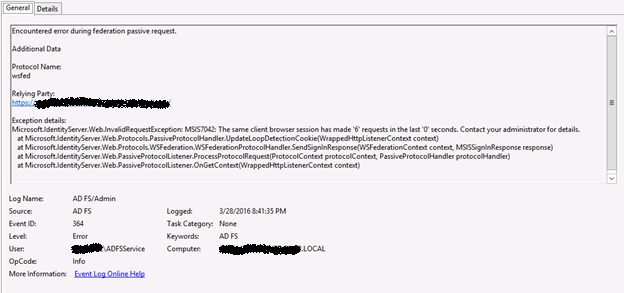
On the ADFS server I was seeing Event ID 364 in the Event Viewer:

Exception details:
Microsoft.IdentityServer.Web.InvalidRequestException: MSIS7042: The same client browser session has made '6' requests in the last '0' seconds. Contact your administrator for details.


In efforts to get this working, I tried completely re-configuring CRM for claims and IFD and even recreated the Relying Party Trusts. All with no luck but apparently, I was not alone on this issue and Microsoft has acknowledged it as a bug with Update 0.1. The following forum thread has more info:

https://social.msdn.microsoft.com/Forums/windowsserver/en-US/9d4040eb-81fa-4144-ae4b-85ca4610aa1d/crm-2016-problem-with-claimsbased-authentication?forum=crm

These are the only real details on this issue currently available:

There were major code changes in Ara UR1 for authentication. The affected code is in Microsoft.Crm.Core.Security.Identity.IdentityExtensions.GetUserPrincipalName(). We are unable to cast from type ClaimsIdentity to a new type CrmIdentity. Therefore, the variable is null, and we cannot retrieve the information.

Please note that only the ‘internal’ URL is affected when IFD is setup. The ‘external’ URL (e.g. https://orgname.domain.com) that uses forms authentication works fine still. I will update this blog post as more information becomes available.

UPDATE: Service Pack 1 for CRM 2016 resolves this issue.

Monday, January 4, 2016

ADFS Logon Page Loop Issue

I recently setup CRM 2015 and ADFS 3.0 (the version that comes on Server 2012 R2, aka ADFS 2.2) on new servers for a customer. Everything configured fine and initial tests proved successful when logging in with the domain admin account used to set everything up. However, I quickly found an issue when other users tried to access CRM via the external URL. At the ADFS login page, a user would enter his or her credentials as usual and try to login but rather than giving a 302 redirect back to CRM for access, it redirected back to the ADFS login page. This presented no errors on screen or in the CRM event viewer – it was as if I never tried logging in. If I purposefully entered invalid credentials, it provided the error regarding incorrect user ID or password so I knew authentication against AD was taking place successfully and that something was wrong with the passing of the token.  Also of note was the fact that despite the external URL not working, all users were able to access CRM just fine using the internal (pass-through auth) URL.


Nothing appeared in the ADFS Admin event viewer logs but upon closer inspection, the Security log in the event viewer on the ADFS server was loading up with Audit Failure notifications – Event ID 4625. The failure reason indicated “Unknown user name or bad password” for the ADFS service account. As any logical person would assume, I figured the account was locked out, the password expired, or I entered invalid credentials during setup. Unfortunately, upon resetting the password in Active Directory, the audit failures persisted.


After some digging around, I uncovered that adding the ADFS service account to the Windows Authorization Access Group in Active Directory was the resolution. The members of this group have access to the computed tokenGroupsGlobalAndUniversal attribute on User objects. I added the account to the group, restarted the ADFS service, and all users were then able to access CRM via the external URL as expected!


UPDATE (1/27/16) - While adding the ADFS service account to the Windows Authorization Access Group fixed the issue for most users accessing CRM, it managed to rear its ugly head for a handful of users again. The fix this time was similar - I added the account to the Pre-Windows 2000 Compatible Access Group. Users in this group have read access over all users in the domain. Typically, the 'Everyone' group is present in here by default so this is not usually an issue but this customer in particular removed it. So to conclude, make sure group membership is set on both of these groups if you are experiencing the loop issue.