Showing posts with label ADFS. Show all posts

Friday, August 25, 2017

ADFS Cache Issues

From time-to-time, employees may leave a company but end up coming back. With all that comes user management, accounts, access, permissions, etc…. While that is all easy enough from an Active Directory Standpoint, this can cause some complications with access into CRM/Dynamics 365 when using ADFS for claims-based authentication. Particularly if the user’s original AD account was deleted and then recreated with the same username.

After the account is recreated, you may learn that there isn’t any issue re-enabling the user in CRM or Dynamics 365 but that the user cannot login via ADFS. There is also a similar scenario when companies migrate domains and keep the same user names, only changing the domain. Some behavior you may notice are 404 errors, wrong username showing in event viewer logs, and general ADFS errors. While I haven’t been able to pinpoint why this happens sometimes and not others, what I do know is the problem lies within ADFS.

Basically what seems to be going on is the ADFS server has a cache of information already built up about the users, including GUIDs, SIDs, UPNs, etc… So when an authentication request comes through it checks for the username in its cache along with any associated records and matches what it can rather than pulling from Active Directory. When it does this it can pull the information from the old, previously-deleted account and then error out.

Anyways, without further ado – here are two methods that I’ve used successfully to get through these situations. Sometimes one works and sometimes the other works – just some more mystery around this situation…

Method 1: Disable the LSA Cache
This method involves disabling the LSA cache by setting it’s maximum size to 0 – essentially making it nonexistent.

  1. Log on to the ADFS Server.
  2. Open Registry Editor.
  3. Go to HKEY_LOCAL_MACHINE\SYSTEM\CurrentControlSet\Control\Lsa.
  4. Create a new DWORD value in Lsa named LsaLookupCacheMaxSize and set the value to 0.
  5. Close Registry Editor.
  6. Have problem user try to log in again.

Whether or not this works, go back in after testing and delete the value you just created. ADFS may suffer from performance issues if it is left in place for a long period of time.

Method 2: Use PSTools to update SID
Going this route requires the download of PsTools – a command-line tool that helps with server administration. In our scenario, it is the PsGetSid command that will be useful as it will force update the SID of the account held in cache from AD.

  1. Log on to the ADFS server.
  2. Download PSTools from https://docs.microsoft.com/en-us/sysinternals/downloads/psgetsid.
  3. Extract out the contents of the zip file into an accessible directory.
  4. Run PSGetSid from command prompt using the following syntax: C:\{Directory}\PsGetsid.exe domain\crmuser
  5. Have problem user try to log in again.

If neither of those methods works, there may be something else wrong. I would start by verifying that all other users can access CRM/D365 without issue and go from there. My apologies for not having exact error messages or screenshots on this post – it was just an issue I’ve run into in the past a few times and thought it may help someone out regardless as I’ve realized there isn’t much information out there about it.

Wednesday, August 9, 2017

Connecting Dynamics 365 On-Premise to Power BI

If you're looking to setup the integration between Dynamics 365 On-Premise (using IFD) and Power BI, you may stumble upon this lovely TechNet: https://technet.microsoft.com/en-us/library/dn708055.aspx#PBI_op

All seems great, right? Well, that would be the case if all the steps were accurate...

To start, the PowerShell commands in step 1 to enable OAuth on the Dynamics 365 Server just do not work. The first three will work fine but upon execution of the 4th to actually set the change, it will throw an error. Instead, use this syntax to accomplish the same thing:

Add-PSSnapin Microsoft.Crm.PowerShell
$ClaimsSettings = Get-CrmSetting -SettingType OAuthClaimsSettings
$ClaimsSettings.Enabled = $true
Set-CrmSetting -Setting $ClaimsSettings

Afterwards, run Get-CrmSetting -SettingType OAuthClaimsSettings and you should see enabled set to "True" as shown below.


Moving onward to step 3 in the process where we register the Power BI Desktop OAuth 2.0 client with ADFS. You will notice in the instructions that it states "open a Windows PowerShell window and run the following PowerShell command on the PC where you are running Power BI Desktop". This is simply wrong. The "Add-AdfsClient" command is for... ADFS. Shocking, I know. So ignore the statement about the PC running Power BI and run the command provided on your ADFS server instead. Luckily, this one is correct and works. If you run Get-AdfsClient afterwards, you will see the addition of Power BI.


One last helpful tip - When copying commands from websites (even here), I always recommend pasting into Notepad before bringing them where they need to be executed (e.g. SSMS, PowerShell, etc...). This will get rid of any problematic formatting.

That's really it from a server perspective. Best of luck!

Monday, June 5, 2017

URL Redirect Based on IP Address

As you are most likely aware, CRM/D365 has two URLs to access it when setup for IFD. The first URL, referred to as the “internal URL”, will allow authentication to be passed through and not display the ADFS login page for credentials. As the name suggests, this URL should only be available from within the network and not exposed out over the internet. The second URL, (not surprisingly) referred to as the “external URL”, will not pass through authentication and will display the ADFS login form for users to enter credentials. This URL is the one exposed out over the internet but is also available from within the network.

Customers often like the convenience of not having to enter credentials using the internal URL but do not like having two URLs to use. As a result, we are tasked with providing a solution to this dilemma. Back in the days of ADFS 2.0, we could easily handle this with a much simpler tweak in IIS of the ADFS server. Unfortunately, with the newer versions of ADFS no longer using IIS as its backbone this is no longer an option and a URL Rewrite rule now must be implemented on the CRM/D365 server. Here’s how:

1. Open IIS on the CRM/D365 Front End (web) Server and go to the URL Rewrite module of the CRM Website.


2. Click the link to “Add Rule(s)” and just select “Blank Rule” under Inbound rules.


3. Give the rule an applicable name and in the Match URL section, leave both the ”Requested URL” and “Using” fields as their defaults (shown in screen capture). In the “Pattern” field type in (.*).


4. This is where it gets fun. In the Conditions section, you will add three rules in the order shown below.

     a. For the first rule, change “crmorgname” to the actual name of your organization.
     b. For the second rule, change the pattern to match that of your internal IP range.
     c. Just enter the third rule as shown – no changes needed – ([^\.]*)\.(.*)


5. In the Action section, change the “Action type” to “Redirect” and for the Redirect URL enter your internal CRM/D365 URL followed by the syntax shown in the screenshot. Leave “Append query string” checked and set the Redirect type to “Permanent (301)”.


6. Apply the URL Rewrite rule and test it by going to the external URL from a machine that has an IP address matching that of the ranges specified on your network. If everything was setup correctly, the external URL will redirect to the internal URL and pass-through authentication will occur.

Wednesday, May 17, 2017

Tracing ADFS Logon Failures - Enabling ADFS Auditing

If you are ever faced with a situation where you are seeing a ton of logon failures in your ADFS logs and you’re not sure where they are coming from, you will soon learn that the basic logs do not provide any insight into their origins. But fear not! Some additional auditing can be enabled to help track down your problem child.

You will likely start with “Event 342 – The user name or password is incorrect” in the ADFS Admin logs – this is about as useless as it gets.


In my scenario, I was seeing about 1,500 of those events per minute. Needless to say, something was wrong but we had no idea what could possibly be trying to authenticate that much. Luckily, ADFS has some built-in auditing that can be of more use in situations like this. Start out by opening the ADFS Management Console and choose the option “Edit Federation Service Properties…” (it’s in the column on the right). Once in the properties screen, click on the “Events” tab. Here you should see 5 checkboxes – 2 of which are unchecked. Check those boxes (Success audits and Failure audits) and click OK.


Now that ADFS is setup for auditing, you need to tell the server to allow it. Head on over to the Local Security Policy of the ADFS server – this can be found from the Server Manager. Once here, drop down “Advanced Audit Policy Configuration” and then “System Audit Policies – Local Group Policy Object”. Locate the “Object Access” policy and then open the “Audit Application Generated” subcategory. Check the three boxes on this screen and then click OK.


You should now be all set to revisit your Event Viewer. Look into the Security events under the Windows Logs and you should now see events with ID 411 for “Classic Audit Failure” with the source as “AD FS Auditing”.


Go ahead and open one of those bad boys up…. Ahhhh finally some useful information! A quick look through will reveal the Client IP, which should be the machine sending the invalid authentication requests to ADFS.


The process from here is self-explanatory but head on over to the machine with the offending client IP address and find out what the problem is. In my case, there was a long-forgotten email router still setup which kept trying to access CRM. After figuring out the problem, it is recommended to disable auditing.

Tuesday, March 28, 2017

Yet Another ADFS Looping Issue

I recently applied the Dynamics 365 Update to a CRM 2016 Service Pack 1 environment that was setup for IFD and ran into some unexpected behavior. This environment had about 15 organization setup in it. When trying to log on using the external URLs (e.g. orgname.domain.com) access worked without issue but using the internal URL for any organization (e.g. crm.domain.com/orgname) CRM and ADFS would run in a continuous loop. Sometimes it would error out, sometimes it would just keep looping forever.

Started off by checking event viewers on both the CRM and ADFS server. I noticed that on the times it did error out after a few loops instead of looping nonstop, it resulted in an event log similar to one I saw before caused by a bug with the 0.1 Update for CRM 2016 (http://blog.gagepennisi.com/2016/04/crm-2016-update-01-bug-with-adfs-for.html):

MSIS7042: The same client browser session has made '6' requests in the last '17' seconds. Contact your administrator for details.

So immediately I thought “Great, here we go again.” There was also nothing in the CRM event viewer.

Hours of trying different different troubleshooting tactics for similar situations (including this one with the same looping behavior but with the external URL - http://blog.gagepennisi.com/2016/01/adfs-logon-page-loop-issue.html) yielded nothing. Rebuilt the Relying Party Trusts, reconfigured IFD, created a self-signed certificate to verify it wasn’t a certificate issue, etc…

Instead of keeping on with the guess and check, I realized I needed to get more information around the problem so I started with a Fiddler trace – great web debugging tool, if you haven’t heard of it (http://www.telerik.com/fiddler). Unfortunately, in this case all it did was confirm the behavior I was seeing in the browser which was a constant redirect between D365 and ADFS.


After that, I decided to run a platform trace on the CRM server to see if CRM would give me any insight but nothing really stood out to me. Almost at my wit’s end, I decided to rope in my colleague Dan Francis to get another set of eyes on it. After some review of the platform trace he noticed one little line that seemed a bit odd:

>Multi-org sharable cache loading system and non-system metadata with build number 7.0.0.3543 and language 1033

CRM 2016 is version 8.0 and D365 is 8.2 so the fact that we were seeing any refernce to 7.0.X.XXXX (CRM 2015) was not inline with what was to be expected. We checked the Deployment Manger and realized there was an old, disabled organization from CRM 2015 that was not upgraded (because it was disabled at the time of the original CRM 2016 upgrade). After some deliberation, we decided to remove that organization from the deployment and boom! The internal URL began working as expected!

Basically what we were able to surmise from this is that when the internal URL is being used, all organizations – whether enabled or disabled – are checked for versioning and the lowest build number is used to load this “multi-org sharable cache” and apparently D365 doesn’t play nicely with older versions hanging around. Moral of the story – update/upgrade all of your orgs or just remove them.

Big thanks to Dan the Man!

Friday, December 2, 2016

HTTP to HTTPS Redirect for CRM using Claims-Based Authentication and IFD

In some cases, our customers would like HTTP to HTTPS redirection setup for CRM when using Claims-Based Authentication and IFD. There are a number of articles and blogs out on the internet that use various methods to accomplish this (e.g. URL Rewriting) but I find that a lot are overly complicated if all you are looking to do is have the redirect functioning internally (you do not want port 80 open on your firewall anyways). Below is what I perceive to be the easiest method to achieving this – using the HTTP Redirection capabilities of IIS:

1. First we will need to install HTTP Redirection on the CRM Web Server if it is not installed already. In Server Manager, go to Add Roles and Features and choose to add the HTTP Redirection feature under the Web Server role.


2. Create two folders in a directory that you know will not be deleted. Name these folders something along the lines of “CRM Internal Redirect” and “CRM External Redirect”. Folder names and paths aren’t too important but in my example I just put them in the inetpub directory.


3. Next, go into IIS. Make sure to remove the HTTP (port 80) binding from the CRM site before proceeding with the next steps.

4. Since two URLs can be used to be accessed CRM when it is setup for Claims and IFD, we will need to create the redirects for both URLs. Begin by creating a new website in IIS for the Internal URL.
  • Site Name: Something descriptive such as “CRM Internal Redirect”
  • Physical Path: Browse to the CRM Internal Redirect folder created in step 2.
  • Binding Type: HTTP
  • IP Address: Unless you have multiple IP addresses on your server, you can leave this on All Unassigned. Otherwise, select the IP address used by CRM.
  • Port: 80
  • Host Name: This will your internal CRM URL which was configured when setting up Claims/IFD. If you are unsure of it, open the CRM Deployment Manager and go to properties. Select the Web Addresses tab and you should see your internal URL.

5. Just like step 4, create another new site in IIS – this time for the external URL:
  • Site Name: Something descriptive such as “CRM External Redirect”
  • Physical Path: Browse to the CRM External Redirect folder created in step 2.
  • Binding Type: HTTP
  • IP Address: Unless you have multiple IP addresses on your server, you can leave this on All Unassigned. Otherwise, select the IP address used by CRM.
  • Port: 80
  • Host Name: This will your exteransl CRM URL which was configured when setting up Claims/IFD. If you are unsure of it, this is the unique name of your CRM organization followed by the domain (e.g. orgname.domain.com).

6. You should now have IIS looking similar to this:


7. Click on your Internal Redirect site and open the HTTP Redirect module:


8. In the HTTP Redirect settings, check the box for “Redirect requests to this destination:” and then enter your internal URL with HTTPS:// prefixed. Leave the other boxes unchecked and status code at 302. Apply the configuration.


9. Now do the same for the External redirect site. Click on your External Redirect site and open the HTTP Redirect module. In the HTTP Redirect settings, check the box for “Redirect requests to this destination:” and then enter your external URL with HTTPS:// prefixed. Leave the other boxes unchecked and status code at 302. Apply the configuration.


That’s it. You should now be able to enter either of the CRM URLs with HTTP into a browser and have it redirected to HTTPS appropriately.

Tuesday, November 8, 2016

Insufficient Winsock Resources Available to Complete Socket Connection Initiation

Seemingly out of the blue, one of our customers could no longer log in to their CRM. As it appeared to be an authentication issue, I began troubleshooting on their ADFS server. Upon opening the ADFS Management Console, I was greeted with the following error message:


In the event viewer were a number of errors similar to this:

Microsoft.IdentityServer.Configuration.ReadServiceConfigFailedException: MSIS2001: Configuration service URL is not configured. ---> System.InsufficientMemoryException: Insufficient winsock resources available to complete socket connection initiation. ---> System.Net.Sockets.SocketException: An operation on a socket could not be performed because the system lacked sufficient buffer space or because a queue was full 127.0.0.1:1500

Well, this was a new one for me but at least the error message actually gave a description instead of something generic. Logic dictates that if there isn’t enough of something, give it more. In this case, it appeared to me that ADFS was complaining about not having enough ephemeral ports so I figured I would increase the number available.

  1. Start Registry Editor.
  2. Locate the following subkey in the registry, and then click Parameters:  HKEY_LOCAL_MACHINE\SYSTEM\CurrentControlSet\Services\Tcpip\Parameters
  3. On the Edit menu, click New, and then add the following registry entry:
    Value Type: DWORD
    Value Name: MaxUserPort
    Value Data: 65534 (decimal)
  4. Reboot server
After completing the above, ADFS was able to open the connection to its database and users were able to log back in to CRM. Now, it may be worthwhile to investigate exactly why ports suddenly became busy… perhaps there is a socket leak or new applications were installed… but this should at least get you up and running in the meantime.

Saturday, July 16, 2016

The private key does not support the exchange KeySpec.

When using Active Directory Federation Services (ADFS) for claims-based authentication with Dynamics CRM, one of the requirements is a SSL certificate. If a new certificate has to be procured, it is imperative to make sure the certificate request (CSR) is being generated with the correct KeySpec, if required.

There are two options for KeySpec:
  • “1” or “XCN_AT_KEYEXCHANGE” 
  • “2” or “XCN_AT_SIGNATURE”
With ADFS, the certificate needs to support key exchange so the required KeySpec is "1" or "XCN_AT_KEYEXCHANGE". If the other option is chosen, you may end up with failures when trying to log in to CRM and will see errors in the event viewer on the ADFS server similar to below.

Exception type: NotSupportedException 
    Exception message: The private key does not support the exchange KeySpec.
   at System.IdentityModel.Tokens.X509AsymmetricSecurityKey.DecryptKey(String algorithm, Byte[] keyData)
   at System.IdentityModel.Selectors.SecurityTokenResolver.SimpleTokenResolver.TryResolveSecurityKeyCore(SecurityKeyIdentifierClause keyIdentifierClause, SecurityKey& key)


While the certificate will still appear valid using "XCN_AT_SIGNATURE" and will secure the webpages, authentication will not succeed with ADFS so the certificate will need to be regenerated. 

Friday, April 15, 2016

CRM 2016 Update 0.1 Bug with ADFS for Server 2012 R2


Following a successful upgrade to CRM 2016 and installation of the 0.1 Update, users could no longer authenticate against ADFS using the “internal” URL.

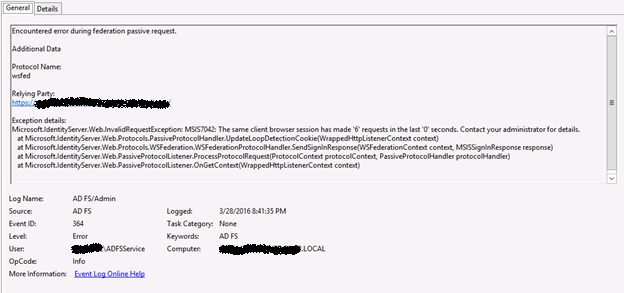
On the ADFS server I was seeing Event ID 364 in the Event Viewer:

Exception details:
Microsoft.IdentityServer.Web.InvalidRequestException: MSIS7042: The same client browser session has made '6' requests in the last '0' seconds. Contact your administrator for details.


In efforts to get this working, I tried completely re-configuring CRM for claims and IFD and even recreated the Relying Party Trusts. All with no luck but apparently, I was not alone on this issue and Microsoft has acknowledged it as a bug with Update 0.1. The following forum thread has more info:

https://social.msdn.microsoft.com/Forums/windowsserver/en-US/9d4040eb-81fa-4144-ae4b-85ca4610aa1d/crm-2016-problem-with-claimsbased-authentication?forum=crm

These are the only real details on this issue currently available:

There were major code changes in Ara UR1 for authentication. The affected code is in Microsoft.Crm.Core.Security.Identity.IdentityExtensions.GetUserPrincipalName(). We are unable to cast from type ClaimsIdentity to a new type CrmIdentity. Therefore, the variable is null, and we cannot retrieve the information.

Please note that only the ‘internal’ URL is affected when IFD is setup. The ‘external’ URL (e.g. https://orgname.domain.com) that uses forms authentication works fine still. I will update this blog post as more information becomes available.

UPDATE: Service Pack 1 for CRM 2016 resolves this issue.

Thursday, March 17, 2016

The Authentication Endpoint Username Was Not Found On The Configured Secure Token Service and Port 808

While not recommended, circumstances sometime present the need to install CRM and ADFS on the same server. If this is done on Windows Server 2012 R2, you will likely run into issues connecting anything through the discovery service such as the Outlook Add-In, Email Router, and Plugin Registration Tool. The error will read:

The authentication endpoint Username was not found on the configured Secure Token Service.

If taken literally, one would be tempted to go to the ADFS Configuration and enable the /adfs/services/trust/13/username endpoint as shown below:


DO NOT DO THIS! On the outside chance that it does actually fix the immediate issue it can cause further authentication problems and is NOT recommended – despite what some other blogs/forums may tell you.

Further investigation should eventually lead you to this error in the ADFS event viewer logs:

System.ServiceModel.AddressAlreadyInUseException: There is already a listener on IP endpoint 0.0.0.0:808. This could happen if there is another application already listening on this endpoint or if you have multiple service endpoints in your service host with the same IP endpoint but with incompatible binding configurations. —> System.Net.Sockets.SocketException: Only one usage of each socket address (protocol/network address/port) is normally permitted

With ADFS for Server 2012 R2, net.tcp port 808 is utilized for a function of the federation service. You may recall that port 808 is also used by CRM for its sandbox service so it’s easy to see the problem here. Port conflict! Luckily, the solution is rather simple. Just open a PowerShell prompt on the server and enter the following:

Set-ADFSProperties -nettcpport 809

(Note: In the above the command, 809 is just an example of a port that can be used and is not required. If something else is running over port 809 on your server, substitute it for some other number.)

After the command has been run, restart the ADFS service, IIS, and the email router service (if the email router was having the issue connecting) – to be on the safe side, you could just reboot the whole server. Give it another go and you should be in business! If you are wondering why this hasn’t been an issue with past versions of ADFS, it's because the federation services used to run on ports 1500 and 1501.

Tuesday, March 1, 2016

CertificateDuration of ADFS Token Certificates

At the end of a past blog post on my page (http://blog.gagepennisi.com/2016/01/understanding-adfs-token-signing-and.html), I touched on the subject of extending the certificate validity period from the default of one year. Recall that when these certificates expire or rollover automatically, CRM becomes inaccessible so reducing the frequency of how soon these expire will reduce the downtime associated. Let’s dig in:
  1. Open an administrative PowerShell prompt on the ADFS server
  2. If using Server 2008 R2 (ADFS 2.0), add the ADFS Snap-in:
              Add-PSSnapin Microsoft.ADFS.PowerShell
  3. Set the CertificateDuration property (Note: ‘1095’ below is an example and represents the number of days desired. 1,095 days = 3 years):
              Set-AdfsProperties -CertificateDuration 1095
  4. Create new token certificates with the new duration:
              Update-AdfsCertificate –Urgent
  5. Update the ADFS metadata stored in the CRM databases by running through the Claims-based Authentication and IFD Wizards in the CRM Deployment Manager.
  6. Issue an IISRESET on CRM Server(s).
CRM and ADFS should both now be working with your extended-duration token certificates!

Note: If you have just installed ADFS, and not yet set CRM up for Claims-based Authentication/IFD, you do not need to perform steps 5 and 6.

Saturday, February 13, 2016

Why You Should Have TCP Port 80 Open Outbound On Your ADFS Servers


Active Directory Federation Services (ADFS) performs a lot of tasks when it comes to authenticating users into CRM securely. One of those tasks in particular is a certification revocation check to validate that the certificates being used are still valid. ADFS completes this process by reaching out to certification revocation lists (CRLs) over TCP port 80 – basic HTTP communication.

What we’ve seen is that businesses will want to lock down their ADFS servers just to be on the “safe side” and that includes closing TCP Port 80 outbound (e.g. no internet access). If left in its default state, ADFS will break and cause authentication to fail as it knows that it is supposed to check the CLRs to validate the certificate before issuing a token to allow a user into CRM. If it cannot do this, it will not issue a token. You may see an error similar to the following in the ADFS event viewer logs after a failed authentication attempt:


Event ID: 364
Microsoft.IdentityServer.AuthenticationFailedException: MSIS3014: The encryption certificate of the relying party trust 'https://crm.domain.com/' identified by thumbprint '01DEDF6E6F532BF7357457EBEC31DA82SFDA1234' is not valid. It might indicate that the certificate has been revoked, has expired, or that the certificate chain is not trusted. ---> Microsoft.IdentityServer.Service.SecurityTokenService.RevocationValidationException: MSIS3014: The encryption certificate of the relying party trust 'https://crm.domain.com/' identified by thumbprint '01DEDF6E6F532BF7357457EBEC31DA82SFDA1234' is not valid. It might indicate that the certificate has been revoked, has expired, or that the certificate chain is not trusted.

So what are your options?
  1. Have your networking team open TCP 80 outbound on the ADFS server(s). This would also apply to all ADFS Proxies or WAP servers. While opening a port might seem less secure at face value it would actually be the opposite as ADFS is able to validate the certificates being used. 
  2. The less preferred, but still acceptable, method would be turning off the Certificate Revocation Check of ADFS. The check is controlled individually for each relying party in ADFS so it would need to be turned off for all one by one. To do this open an admin PowerShell prompt and issue the following command:
                             Set-ADFSRelyingPartyTrust  -TargetName <relyingpartytrustName>  
                             -EncryptionCertificateRevocationCheck None

Sunday, January 17, 2016

Understanding the ADFS Token Signing and Decrypting Certificates Rollover Process

Active Directory Federation Services (ADFS) creates and manages the two certificates used for the tokens issued. These are the Token-signing and Token-decrypting certificates. By default, these certificates are valid for one year from their creation and around the one-year mark, they will renew themselves automatically via the Auto Certificate Rollover feature in ADFS. Once this happens, CRM can no longer properly authenticate users as it still holds the old certificates’ metadata in the database. This is easily resolved by rerunning the “Configure Claims Based Authentication” and “Configure Internet Facing Deployment” wizards from the CRM Deployment Manager and then issuing an IISRESET on the CRM server(s). More details and resolution can be found in this KB: http://support.microsoft.com/kb/2686840

While most CRM administrators understand that aspect, there are a number of settings and configurations that lead up to this issue that are less well-known to most. One of the biggest complexities is understanding EXACTLY when CRM will be going down because of the Auto Certificate Rollover and how to avoid it. We will be going through that today.

We will start with the process that ADFS goes through for certificate renewal:

  1. ADFS determines that its certificates will be expiring soon.
  2. ADFS creates new certificates and sets them as secondary certificates.
  3. ADFS updates the new certificates to primary certificates.

There are a number of settings for ADFS only accessible via PowerShell that control the Auto Certificate Rollover options and properties for the process above. To access these, open an administrative PowerShell prompt and execute the following (Note that if you are using ADFS 2.0, you will need to add the ADFS PowerShell Snap-In first by executing Add-PSSnapin Microsoft.ADFS.PowerShell):


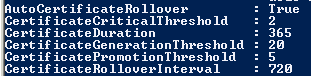
Get-ADFSProperties

This will display a listing of the deployment properties for ADFS, including the properties around the certificates and rollover. For our purposes, we will keep our focus on just a handful of these properties:

  • AutoCertificateRollover
  • CertificateDuration
  • CertificateGenerationThreshold
  • CertificatePromotionThreshold
  • CertificateRolloverInterval


So what do all of these values mean? Below are the same steps provided earlier but now account for the values in the table above.

  1. ADFS determines that its certificates will be expiring within 20 days.
  2. ADFS creates new certificates valid for 365 days and sets them as secondary certificates.
  3. After 5 days’ time the Certificate Management Cycle kicks off and ADFS updates the new certificates to primary certificates.

As you can see, knowing these values can greatly help in planning for certificate rollover. Here is an example:

In the screenshot below, we can see our primary certificates expire on 2/12/2015 and ADFS has already created new certificates to rollover. The new (secondary) certificates were created 20 days prior to the expiration of the primary certificates (1/23/2015). On 1/28/2015, 5 days after the creation of the new certificates, ADFS will change them to primaries.


Great. So what now? BEAT ADFS TO THE PUNCH!

In the above example, you know your deadline is 1/28/2015. Rather than sitting back and waiting until CRM goes down, plan a short outage afterhours and roll the certificates over manually! You can force ADFS to generate new certificates and promote them to primaries immediately using the following command in PowerShell:

Update-ADFSCertificate –Urgent

Once the new certificates are in place in ADFS, re-run the Claims and IFD Wizards in the CRM Deployment Manager to update the metadata and issue an IISReset on the CRM server(s). Voila! Happy CRM users!

Of course, given the properties we have at our disposal to modify there is much more you can do to create a better life for yourself. For example, set the CertificateDuration to 1095 days (three years) rather than just 365 (one year) so this is not as frequent of an issue. Another idea would be to set the CertificateGenerationThreshold lower so the actual rollover date is closer to the true expiration of the certificate. Or just turn off AutoCertificateRollover altogether, set a reminder, and take care of it all manually before expiration!

Monday, January 4, 2016

ADFS Logon Page Loop Issue

I recently setup CRM 2015 and ADFS 3.0 (the version that comes on Server 2012 R2, aka ADFS 2.2) on new servers for a customer. Everything configured fine and initial tests proved successful when logging in with the domain admin account used to set everything up. However, I quickly found an issue when other users tried to access CRM via the external URL. At the ADFS login page, a user would enter his or her credentials as usual and try to login but rather than giving a 302 redirect back to CRM for access, it redirected back to the ADFS login page. This presented no errors on screen or in the CRM event viewer – it was as if I never tried logging in. If I purposefully entered invalid credentials, it provided the error regarding incorrect user ID or password so I knew authentication against AD was taking place successfully and that something was wrong with the passing of the token.  Also of note was the fact that despite the external URL not working, all users were able to access CRM just fine using the internal (pass-through auth) URL.


Nothing appeared in the ADFS Admin event viewer logs but upon closer inspection, the Security log in the event viewer on the ADFS server was loading up with Audit Failure notifications – Event ID 4625. The failure reason indicated “Unknown user name or bad password” for the ADFS service account. As any logical person would assume, I figured the account was locked out, the password expired, or I entered invalid credentials during setup. Unfortunately, upon resetting the password in Active Directory, the audit failures persisted.


After some digging around, I uncovered that adding the ADFS service account to the Windows Authorization Access Group in Active Directory was the resolution. The members of this group have access to the computed tokenGroupsGlobalAndUniversal attribute on User objects. I added the account to the group, restarted the ADFS service, and all users were then able to access CRM via the external URL as expected!


UPDATE (1/27/16) - While adding the ADFS service account to the Windows Authorization Access Group fixed the issue for most users accessing CRM, it managed to rear its ugly head for a handful of users again. The fix this time was similar - I added the account to the Pre-Windows 2000 Compatible Access Group. Users in this group have read access over all users in the domain. Typically, the 'Everyone' group is present in here by default so this is not usually an issue but this customer in particular removed it. So to conclude, make sure group membership is set on both of these groups if you are experiencing the loop issue.